主题
Wefly A320 MCDU Setup Guide
Compatible Model List
MSFS2020:
- FlyByWire A320neo
- FenixSim A320(include A319 & A321 Expansion)
- FSLabs A321ceo MSFS2024:
- FlyByWire A320neo
- FenixSim A320(include A319 & A321 Expansion) X-Plane:
- Toliss A319
- Toliss A320
- Toliss A321
- Toliss A330
- Toliss A340
- FlightFactor A320 Prepar3D:
- FsLabs A320 (Todo)
Install WeSim
Connect the cable
As shown in the figure: (1) USB Type-C interface, (2) CPT/FO switch Wefly A320 MCDU features a USB Type-C port for connecting to a computer to transmit keystroke signals and flight data. The CPT/FO switch requires a USB re-plug after switching to take effect. 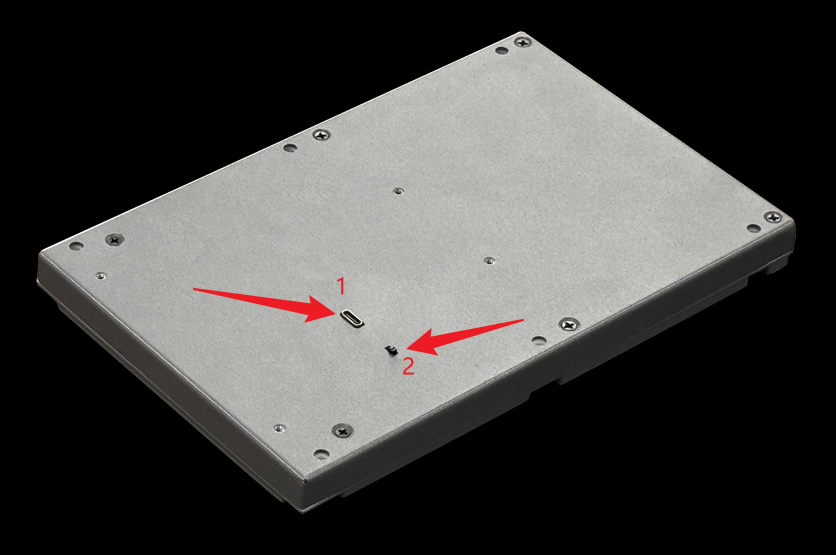
Simulation Software Setup
MSFS2020/MSFS2024
compatible model:
- FlyByWire A320neo(FBW SimBridge and, MobiFlight WASM, required)
- FenixSim A320(V2 Block2 or later required, include A319 & A321 Expansion,, MobiFlight WASM, required)
- FSLabs A321ceo(Switch to Experimental branch in FSL Control Center, and update aircraft models), model match:
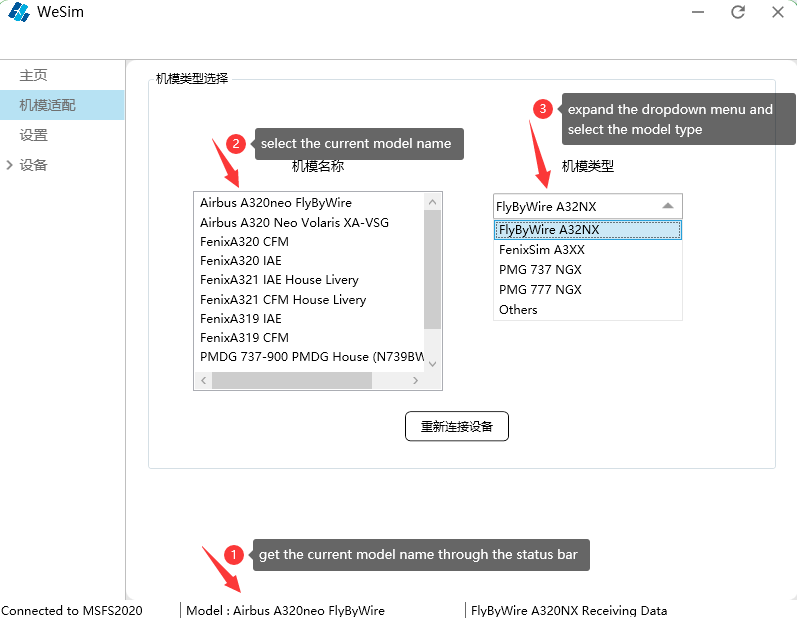
X-Plane
compatible model:
- Toliss A319
- Toliss A320
- Toliss A321
- Toliss A330
- Toliss A340 WeflyXP Plugin install,choose one of two ways
Automate installation
Run WeSim.exe,click “install plugin” 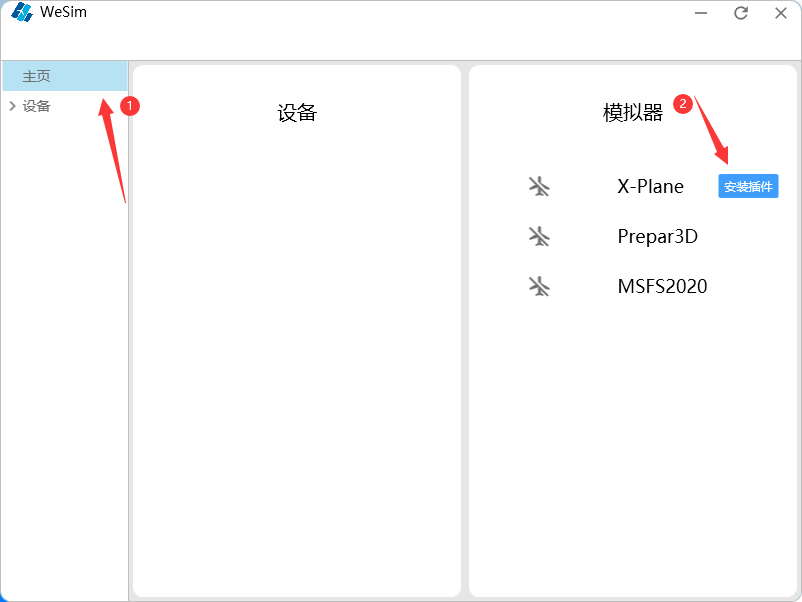 Select the destination folder and click Install
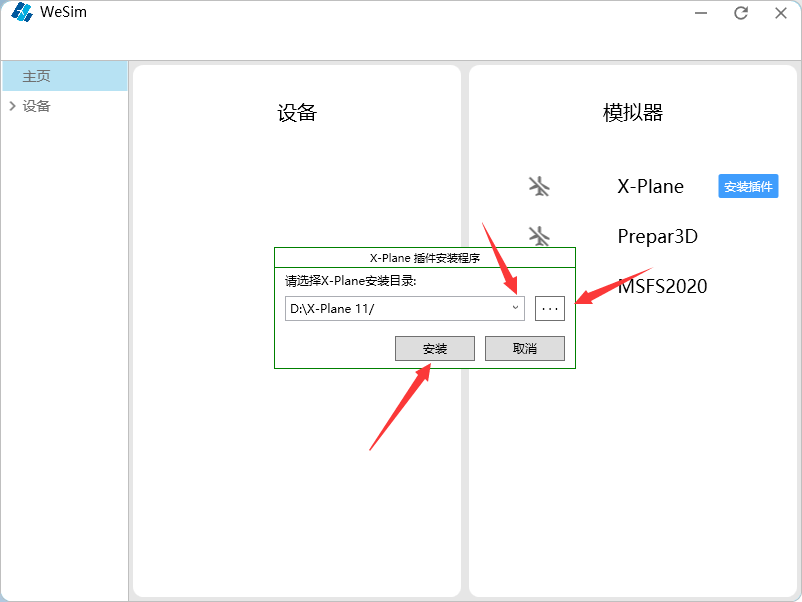
Manual installation
In the WeSim installation directory 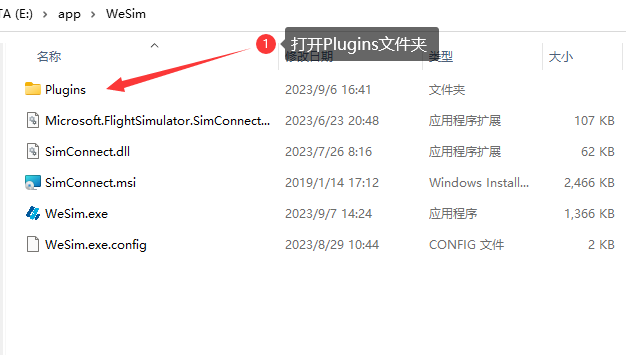 Copy the WeflyXP folder
 Paste it into the Resources/plugins folder in the X-Plane installation directory
Prepar3D
compatible model:
- FsLabs A320 (Todo)
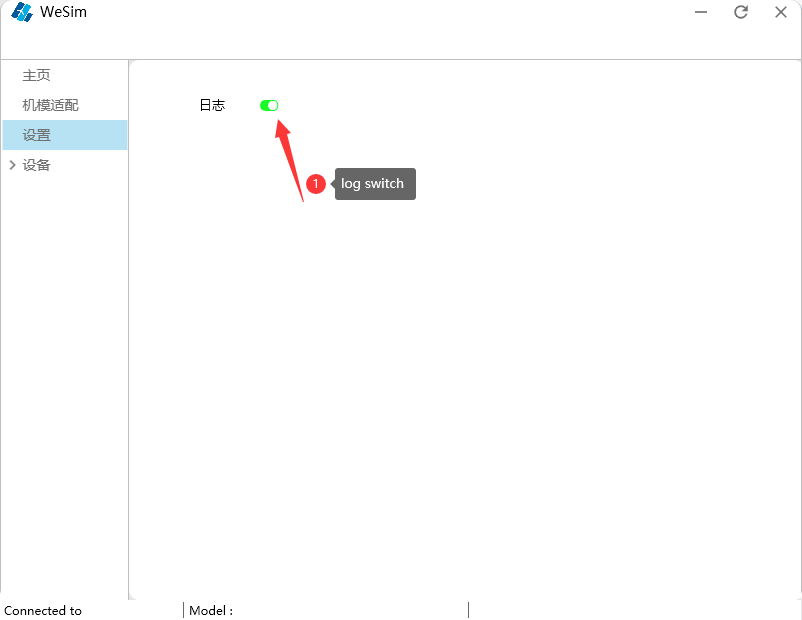
Log setting
 ## Firmware upgrade ### Firmware file download Firmware file:a320mcdu.bin( [Click to download](http://cdn.diycockpit.com/software/a320mcdu.bin "Click to download") ) ### Upgrade method Unplug the USB cable of A320 MCDU, hold down the F key of MCDU, plug in the USB cable, then release the F key, MCDU will enter the firmware upgrade mode, a portable hard driver will appear in the computer, copy the firmware file a320mcdu.bin to this disk, then press the F key of MCDU, the device will automatically upgrade the firmware.